


WordPress can look very complicated to the outsider. And it has already had five major updates during 2020…. and today we prepare for the last update on the year, WordPress 5.6.
WordPress websites often automatically update.
This can cause compatibility issues with other plugins your site is required to use (contact forms being a simple example).
The previous update, WordPress 5.5?
It caused many problems for small business websites…
Issues we fixed for some small businesses were were:
-
- Sites Unresponsive
- Menu Doesn’t Work
- ‘Call Us’ Button Doesn’t Work
- Website Builder/Editor Incompatible
WordPress released a statement and many users turned to the ‘JQuery Enabler’ plugin.
This helped in alleviating many of the issues, until patched up in further updates.
Or until developers of plugins had enough time to release new updates.
If you stop reading this now, take this away…
Update to WordPress 5.6 manually.
WordPress 5.6 is schedule to release on 8th December 2020.
This means if you run a WordPress website, on Tuesday you will receive an email to state your website is automatically updated to the new core version.
And then…
Hopefully?
Nothing.
Your website will run smoothly.
And you’ll suffer no problems.
But this is not something that we can guarantee.
We would recommend that avoid any issues, you take the following steps.
Three Steps to Safely Upgrading to WordPress 5.6
We have three simple steps that will assist your small business, in taking control of your WordPress updates.
And ensuring you can update your website, remain secure from hackers and keeping up with the latest trends, without risking ruining your online reputation by your website crashing due to an error with the update.
The first step?
Making sure you can always revert back to your old website, should anything go wrong.
Step One: Secure Backup
Take a backup of your website.
Now.
We take a backups of all of our websites, of the 1st of every month.
Stored on an external hard-drive.
It better to be safe… than sorry.
You should be doing the same.
Restoring a backup of your website doesn’t take long and can save your from damaging your reputation and having your website offline once it has crashed.
It also saves you from tremendous amounts of work.
There are horror stories of people completely losing their websites when they perform a major WordPress update.
Let’s say that is only a 1% chance?
Would you want to risk it?
Taking a back-up of your website before you do an update should become a habit.
Step Two: Disable Automatic (Core) Update
Disabling automatic updates for your website is always the best practice.
This allows you to manually take control of when your update is performed.
That means you have to be there, to perform the update.
And if there are any issues?
You are equipped to deal with them.
There is nothing worse than being otherwise occupied and suddenly, you get the call that your website is unresponsive due to the update somehow causing conflicts with your website.
Disable the automatic updates!
You can do this in two ways.
Core Files
Editing core files of your WordPress template, which we do not recommend.
Using your cPanel Website Hosting, you can easily access your FTP details and connect to your files.
Find the wp-config.php file and add the above code:
define( ‘WP_AUTO_UPDATE_CORE’, false );
This will stop your WordPress site from updating.
You may also want to explore the .functions.php file, in your activated theme, and add:
add_filter( ‘auto_update_theme’, ‘__return_false’ );
The same with any plugins, with the specific line of code for each plugin:
add_filter( ‘auto_update_theme’, ‘__return_false’ );
Plugin
The easier way is to use a plugin to manage your updates.
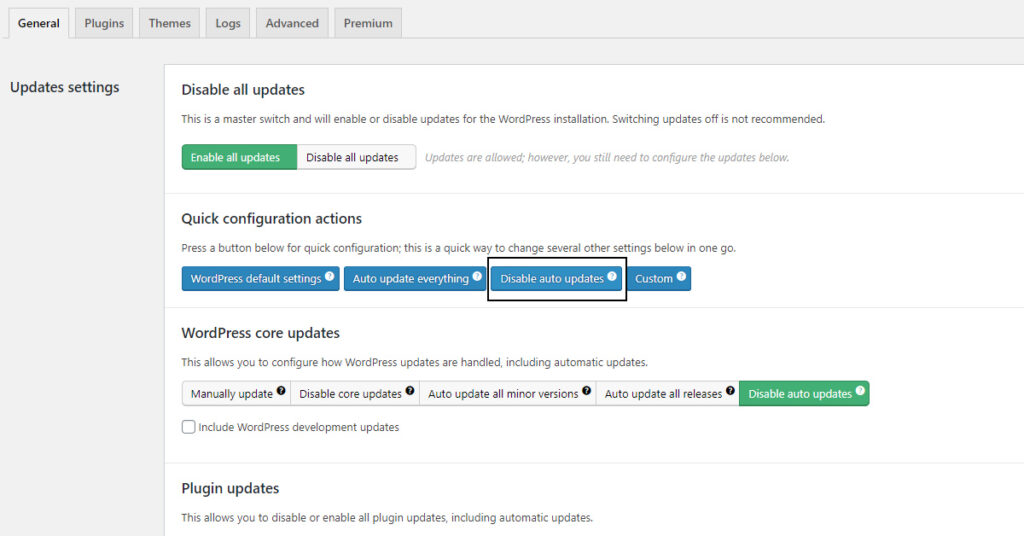
We use Easy Updates Manager.
Please…
When taking this advice.
Always remember.
Disabling updates is not a strategy for the long-term.
This is only recommended if you are going to perform the updates at a later date.
Step Three: Update Website Manually
Manually updating your site, theme and all plugins to the latest versions, is crucial for the security of your website..
It is always best practice to update your WordPress website to the latest version.
This is the most secure.
Hackers need time to detect vulnerabilities.
Every time there is an update, WordPress patch up previously vulnerabilities.
And hackers need to find new ones.
It takes time.
But let’s face it…
One month is not going to kill you.
Wait it out…
You don’t NEED WordPress 5.6.
Search Reddit for horror stories.
Avoid those mistakes.
By waiting a month? You won’t miss anything.
You also allow plugin developers to catch up with updates to their plugins, to make them compatible with the new core update.
The best of all?
You save time, not having to deal with these issues errors.
Problems that WordPress users may face over the next month?
It’s likely they’ll be patched up and fixed by January… when you make your move.
Why wait until January to update your website?
- It will not cause no significant changes to your website.
- There is no risk in keeping your website
- You minimize the risk of ‘breaking’ your website?
You should update to WordPress 5.6.
But you don’t need to do it this week.
Above is three steps to minimize the chance that your website is adversely affected by the new core WordPress update.
How could a WordPress update break your website?
In most cases… it won’t.
But in some cases, it can cause major issues.
Large WordPress updates (performed automatically) could cause some of the issues we spoke about earlier:
-
- Sites Unresponsive
- Menu Doesn’t Work
- ‘Call Us’ Button Doesn’t Work
- Website Builder/Editor Incompatible
Before updating your WordPress 5.6, you should ensure:
- Theme have been updated and is compatible with the new version
- All Plugins you website rely on are all updated to become compatible with the new WordPress version
- You find alternatives to the plugins that may cause issues (if you rely upon them)
- You have a backup of your website.
Remember: Take a backup…
How do I take a backup of my website?
If you take one thing away from today?
It is this.
Have a backup.
This should be a secure, downloaded file.
A website backup is a zip-file contains the website files and database for your WordPress installation.
Should your website suffer any issues from this update, this mitigates any issues.
You can restore the old website… and start again.
We cannot give a step-by-step guide on how to take a backup of your website.
It is different for every service.
Please speak to your website hosting service for this guidance.
But before you perform the update?
Mae sure you have the backup.
In conclusion:
WordPress 5.6 should be safe.
It shouldn’t break your website.
But this is about control.
You don’t want to wake up one morning, unbeknown to you an automatic update was performed on your website…
And now your customers can’t access your website.
And you wouldn’t even know.
Be careful. Take control. And stay updated on the latest.
This is one of the many reasons why, the focus should be on how you will manage your website once it is created…
Rather than just creating a website that could one-day crash, with you having no clear indication as to why.
We recommend that you keep your website up to date with WordPress core updates.
Not updating your website could leave your website vulnerable to hackers.
But we believe you should:
- Be aware of any updates
- Perform updates manually
- Always take a backup before you update your website
That’s it!


Customer Resources


Pay Monthly Websites
Engage your customers with our managed website service.
“Karl made my website exactly how I wanted it but better, he’s very knowledgeable and delivers every time.
I would highly recommend him to anyone looking for a new website. Fantastic service.”
Ashton Rees
Ashton’ Specialized Coatings